
Blog
Why Web Development Is Still One of the Best Careers Today
Web development has been around for decades, but it remains one of the most valuable careers in the world. Even with new…
Read article
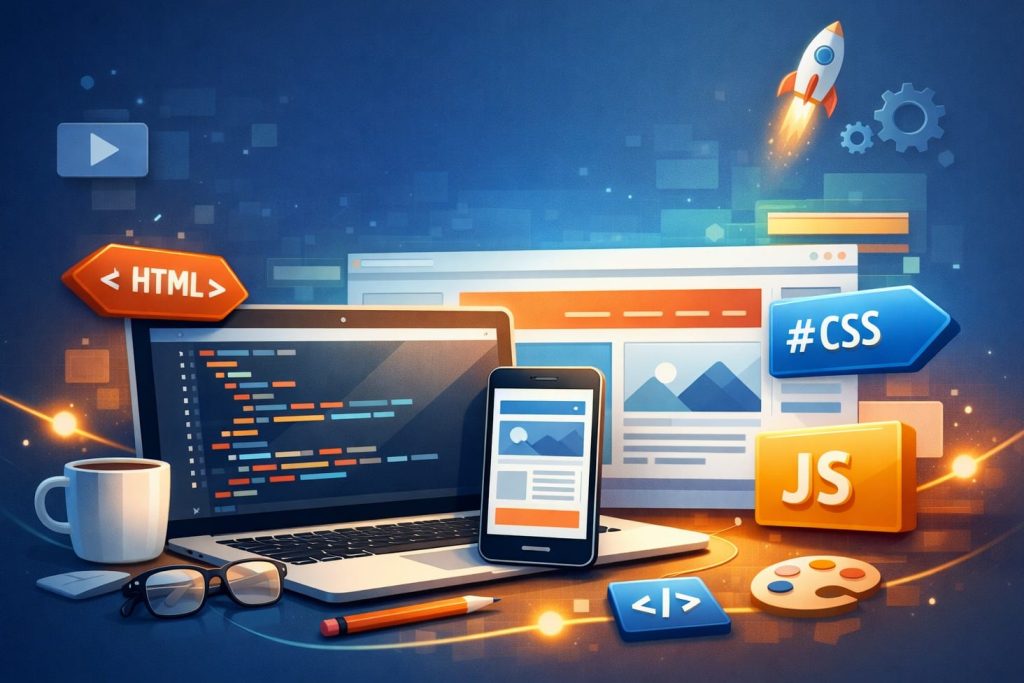
Have you ever looked at a website and wondered, “How was this made?” The good news is that every website on the internet, from a simple blog to a full online store, is built on three core technologies: HTML, CSS, and JavaScript. And the even better news? You can learn all three today.
This guide will walk you through building your very first website from scratch. No prior experience is needed. By the end, you will have a working webpage and a clear understanding of how web development works.
Before we start coding, it helps to understand what each of these languages does. Think of building a website like building a house.
HTML (HyperText Markup Language) is the foundation and the walls. It defines the structure of your webpage: headings, paragraphs, images, links, and buttons. Without HTML, there is no webpage at all.
CSS (Cascading Style Sheets) is the paint, the furniture, and the interior design. It controls how your website looks: colours, fonts, spacing, layout, and responsiveness across different screen sizes.
JavaScript is the electricity and the plumbing. It makes things work. Want a button that shows a message when clicked? Need a menu that opens and closes on mobile? That is JavaScript.
Together, these three languages form the backbone of the modern web, and they are the first skills every aspiring web developer must learn.
You do not need to buy expensive software or a powerful computer to begin. Here is what you need:
A text editor. Visual Studio Code (VS Code) is the most popular free option. Download it from code.visualstudio.com. Alternatives include Sublime Text and Notepad++.
A web browser. Google Chrome, Mozilla Firefox, or Microsoft Edge will all work. Chrome is particularly useful because of its built-in Developer Tools.
Curiosity and patience. You will make mistakes, and that is perfectly normal. Every professional developer started exactly where you are right now.
Organisation matters from the very beginning. Create a folder on your computer called my-first-website. Inside it, create three files:
index.htmlstyle.cssscript.jsYou can do this manually in your file explorer or through the terminal in VS Code. This three-file structure is the standard starting point for any web project.
Open index.html in VS Code and type the following code:
<!DOCTYPE html>
<html lang="en">
<head>
<meta charset="UTF-8">
<meta name="viewport" content="width=device-width, initial-scale=1.0">
<title>My First Website</title>
<link rel="stylesheet" href="style.css">
</head>
<body>
<header>
<h1>Welcome to My First Website</h1>
<p>Built with HTML, CSS, and JavaScript</p>
</header>
<main>
<section>
<h2>About Me</h2>
<p>Hello! My name is [Your Name]. I am learning web development,
and this is my very first website. I built it using HTML for structure,
CSS for styling, and JavaScript for interactivity.</p>
</section>
<section>
<h2>My Interests</h2>
<ul>
<li>Web Development</li>
<li>Graphic Design</li>
<li>Digital Marketing</li>
</ul>
</section>
<section>
<h2>Get In Touch</h2>
<button id="contactBtn">Say Hello</button>
<p id="message"></p>
</section>
</main>
<footer>
<p>© 2026 My First Website. All rights reserved.</p>
</footer>
<script src="script.js"></script>
</body>
</html>
What is happening here? The <!DOCTYPE html> declaration tells the browser this is an HTML5 document. The <head> section contains metadata, the page title, and a link to your CSS file. The <body> section holds everything the user sees. The <script> tag at the bottom links your JavaScript file.
Save the file and open it in your browser by double-clicking on it. You should see a basic, unstyled webpage. It will not look pretty yet, and that is exactly where CSS comes in.
Open style.css and add the following:
/* Reset default spacing */
* {
    margin: 0;
    padding: 0;
    box-sizing: border-box;
}

body {
    font-family: 'Segoe UI', Tahoma, Geneva, Verdana, sans-serif;
    line-height: 1.6;
    color: #333;
    background-color: #f9f9f9;
}

header {
    background-color: #2c3e50;
    color: white;
    text-align: center;
    padding: 40px 20px;
}

header h1 {
    font-size: 2.2rem;
    margin-bottom: 10px;
}

main {
    max-width: 800px;
    margin: 30px auto;
    padding: 0 20px;
}

section {
    background-color: white;
    border-radius: 8px;
    padding: 25px;
    margin-bottom: 20px;
    box-shadow: 0 2px 5px rgba(0, 0, 0, 0.1);
}

h2 {
    color: #2c3e50;
    margin-bottom: 15px;
}

ul {
    padding-left: 20px;
}

li {
    margin-bottom: 8px;
}

button {
    background-color: #27ae60;
    color: white;
    border: none;
    padding: 12px 24px;
    font-size: 1rem;
    border-radius: 5px;
    cursor: pointer;
    transition: background-color 0.3s;
}

button:hover {
    background-color: #219a52;
}

#message {
    margin-top: 15px;
    font-weight: bold;
    color: #27ae60;
}

footer {
    text-align: center;
    padding: 20px;
    color: #777;
    font-size: 0.9rem;
}
Save the file and refresh your browser. The transformation should be dramatic. Your plain webpage now has colour, spacing, rounded cards, and a professional feel. That is the power of CSS.
Key CSS concepts to notice: The * selector resets default browser spacing. Properties like margin, padding, and font-size control layout and text. The hover pseudo-class adds interactivity without JavaScript. The max-width and margin: auto combination centres your content.
Open script.js and add:
// Select the button and the message area
const contactBtn = document.getElementById('contactBtn');
const message = document.getElementById('message');

// Add a click event to the button
contactBtn.addEventListener('click', function () {
    message.textContent = 'Thanks for stopping by! I appreciate your visit.';
});
Save and refresh. Click the “Say Hello” button, and a message will appear below it. This is your first taste of JavaScript in action.
What is happening here? document.getElementById() finds HTML elements by their id attribute. addEventListener() watches for a specific event (in this case, a click). When the event occurs, the function runs and updates the page content dynamically.
Modern websites need to look good on phones, tablets, and desktops. Add this responsive CSS at the bottom of your style.css file:
@media (max-width: 600px) {
    header h1 {
        font-size: 1.6rem;
    }

    main {
        margin: 15px auto;
    }

    section {
        padding: 15px;
    }
}
This media query tells the browser: “When the screen width is 600 pixels or less, apply these adjusted styles.” Try resizing your browser window to see the effect.
Here is a quick summary of the workflow:
This process happens every time someone visits a webpage, anywhere in the world. The three languages are separate files, but they work as one team.
Forgetting to save files before refreshing. This is the number one reason beginners think their code is broken. Always save with Ctrl+S (or Cmd+S on Mac) before switching to your browser.
Misspelling file names or paths. If your HTML says href="style.css" but your file is actually named styles.css, the CSS will not load. File names are case-sensitive on many systems.
Not closing HTML tags. Every opening tag like <section> needs a closing tag </section>. Missing a closing tag can cause unexpected layout issues.
Skipping the viewport meta tag. Without <meta name="viewport" content="width=device-width, initial-scale=1.0">, your site may not display correctly on mobile devices.
Congratulations! You have just built a real website. But this is only the beginning. Here are some logical next steps to continue your learning journey:
Learn more CSS layout techniques. Flexbox and CSS Grid are essential tools for building modern, responsive layouts. They will give you much more control over how elements are positioned on the page.
Explore JavaScript further. Learn about variables, arrays, loops, and functions. Then move on to manipulating the DOM (Document Object Model) to create dynamic, data-driven pages.
Study a CSS framework. Bootstrap and Tailwind CSS can speed up your workflow significantly once you understand the CSS fundamentals.
Build projects. The fastest way to improve is to build real things. Try creating a personal portfolio, a to-do list app, or a landing page for a local business.
Consider formal training. Self-study is valuable, but structured learning with hands-on projects and expert guidance can accelerate your progress. At Afritech Vocational Training Institute, our HND in Computer Graphics and Web Design and our Webmaster vocational programme are designed to take you from beginner to job-ready professional, with practical skills that employers actually need.
Building your first website is one of the most rewarding steps you can take in tech. HTML, CSS, and JavaScript are not just programming tools. They are the gateway to careers in web development, digital marketing, UI/UX design, and software engineering.
The web is global, and the skills you build here are relevant everywhere. Whether you are in Bamenda, Douala, Lagos, or anywhere else, the ability to create for the web opens doors that stay open.
Start with what you learned today. Build something. Break it. Fix it. Build something better. That is how every great developer begins.
Ready to turn your interest in web development into a professional career? Explore our programmes at Afritech Institute and take the next step.
About Afritech Institute
Afritech Professional Vocational Training Institute is a leading vocational and higher education institution in Cameroon, offering MINESUP-accredited HND programmes and MINEFOP-certified vocational qualifications in Software Engineering, Computer Graphics and Web Design, Digital Marketing, Graphic Design, and more.
Web development has been around for decades, but it remains one of the most valuable careers in the world. Even with new…
Read article
Download all six 2026 Cameroon GCE and TVEE result and statistics PDFs, learn how to find a name or centre, and explore…
Read article
What beginners should learn, build and verify before enrolling in an application development course in Cameroon.
Read article